
How to Add and Top Up T-money in Apple Pay
How to add and top up a T-money transit card in Apple Pay to ride buses and subways in Korea with your iPhone. Covers why a KakaoBank card or mini Card in Apple Pay can't be tapped on buses, creating T-money in Wallet, topping up with KakaoBank or Kakao Pay, youth fares, K-Pass, and refunds.
Table of Contents
- 🙋 Were you using T-money on a KakaoBank mini Card?
- 📲 Create T-money in the Wallet app
- 📱 No card? Create it with the Mobile T-money app
- 💳 Top up
- 🚌 Ride buses and subways
- 🎁 Install the Mobile T-money app too
- 💰 Get K-Pass refunds
- ⌚ Ride with Apple Watch
- 💸 Refund the remaining balance
- ❓ Frequently asked questions
💡 To ride buses and subways with your iPhone, you need to create a separate T-money transit card in Wallet. The KakaoBank card or mini Card in Apple Pay is used to top up that T-money.
⚠️ Adding a KakaoBank card to Apple Pay doesn’t let you tap that card on buses. Apple Wallet doesn’t support transit functions built into cards (such as postpaid transit). Only a prepaid T-money card added with the Wallet Transit Card option works as a transit card.
ℹ️ The screenshots are from a Korean iPhone. On an iPhone set to another language, Wallet menus appear in that language.
🙋 Were you using T-money on a KakaoBank mini Card?
A physical mini Card has prepaid T-money built in. You top it up and check the balance in the KakaoBank app. This T-money is stored in the physical card, so it doesn’t move to your iPhone when you add the mini Card to Apple Pay.
So choose one of these:
| Option | How you ride |
|---|---|
| ① Keep using the physical mini Card | Tap the physical card on the reader. Top it up in the KakaoBank app as before |
| ② Use your iPhone | Create a new T-money in Wallet and top it up with the mini Card in Apple Pay (steps below) |
💸 Balance left on the physical card
To move or refund the T-money balance left on the physical card, contact the T-money customer center at 1644-0088.
🧒 Youth fares
To ride at youth fares, register for the child or youth discount for your Wallet T-money in the Mobile T-money app too.
📲 Create T-money in the Wallet app
If you already added a card (KakaoBank or Hyundai Card) to Apple Pay, you can create T-money right in the Wallet app. If not, first see How to Add a KakaoBank Card to Apple Pay.
Tap the plus button in Wallet
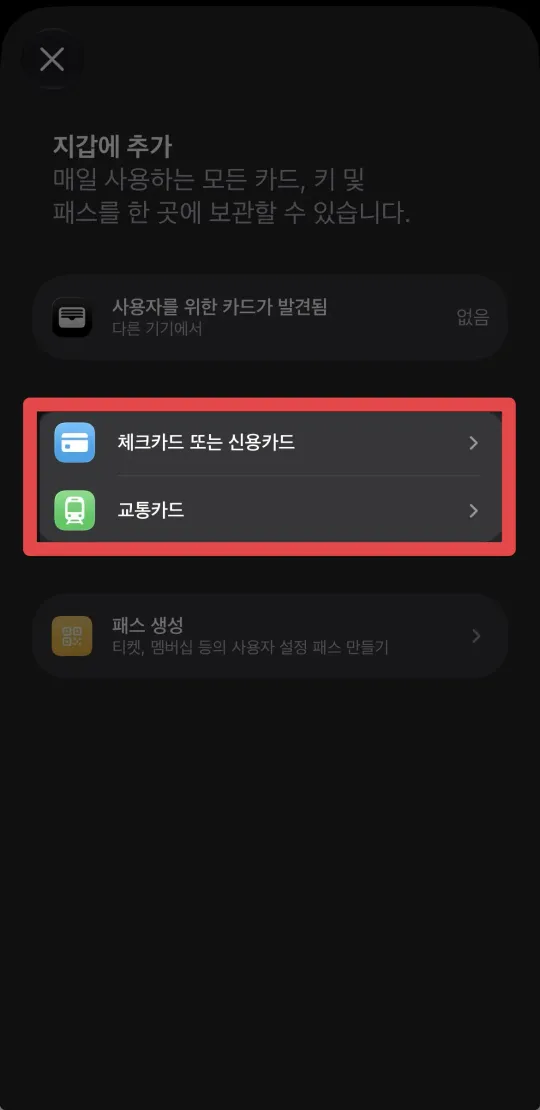
In the iPhone Wallet app, tap + at the top right and choose Transit Card (교통카드).
Choose South Korea (Tmoney)
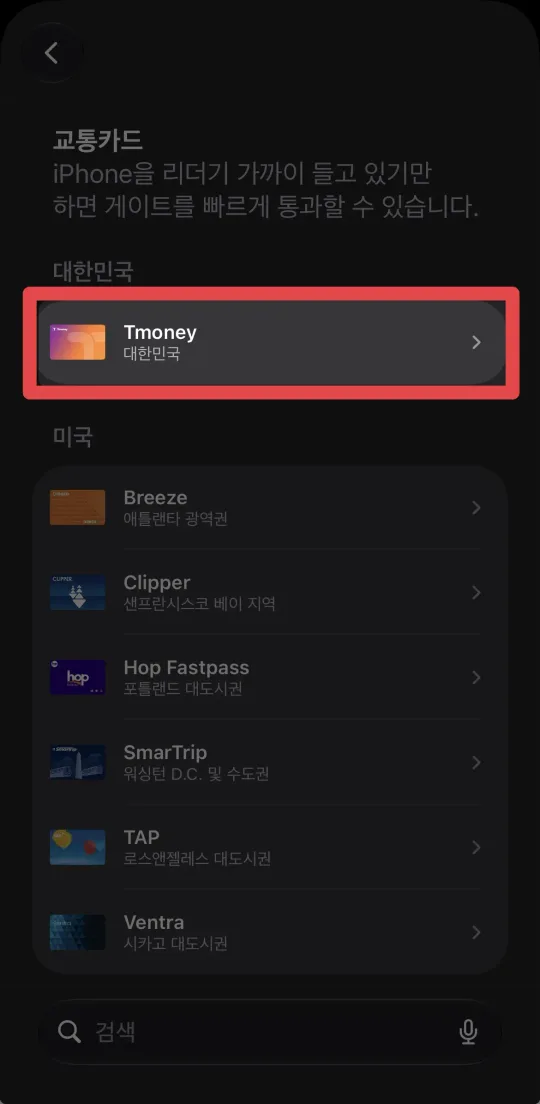
In the transit card list, tap Tmoney under South Korea (대한민국).
Tap Agree and Continue
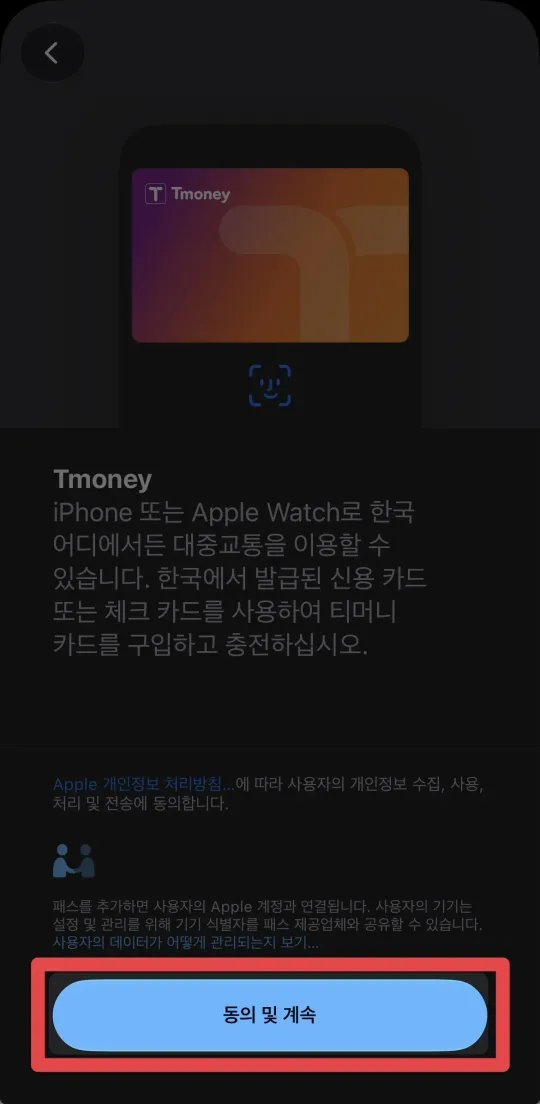
At the bottom of the Tmoney screen, tap 동의 및 계속 (Agree and Continue).
Choose the first top-up amount
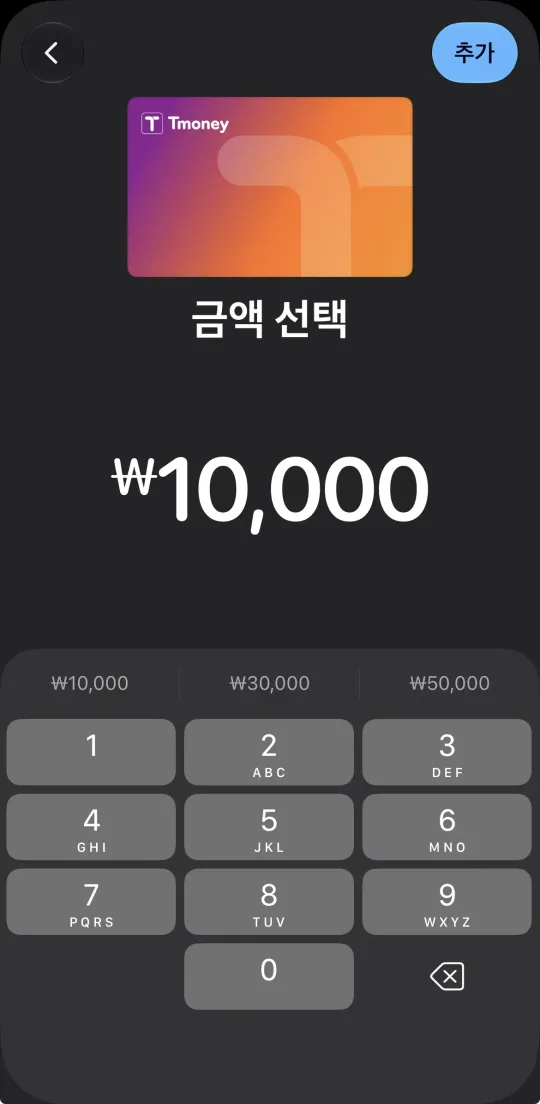
On the 금액 선택 (Select Amount) screen, choose an amount and tap 추가 (Add) at the top right.
💡 Choose ₩10,000, ₩30,000, or ₩50,000, or type an amount. The first top-up must be at least ₩3,000.
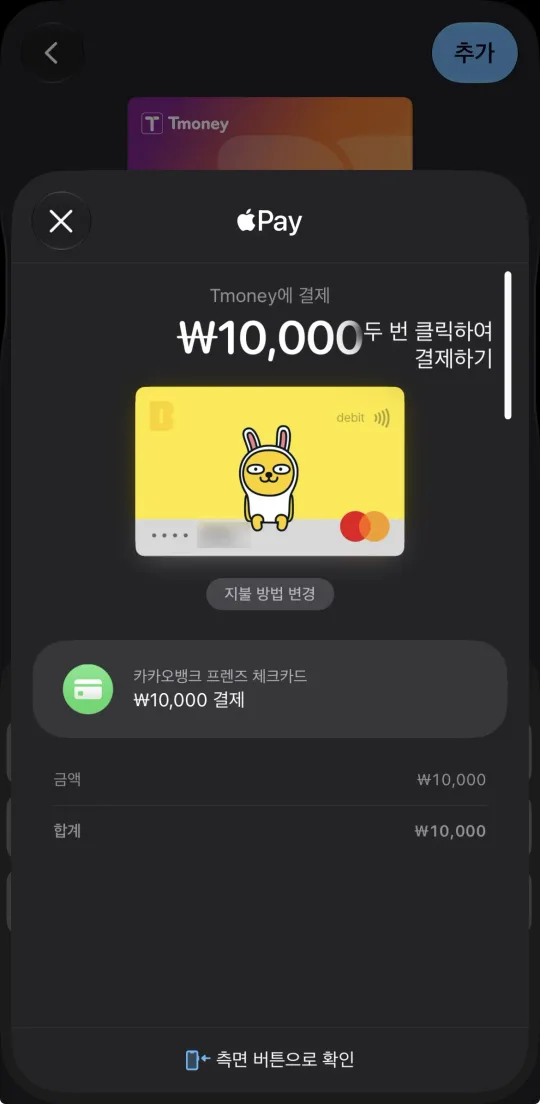
Pay with your KakaoBank card
In the Apple Pay sheet, check your KakaoBank card and double-click the side button to pay.
💡 To pay with another card, tap 지불 방법 변경 (Change Payment Method).
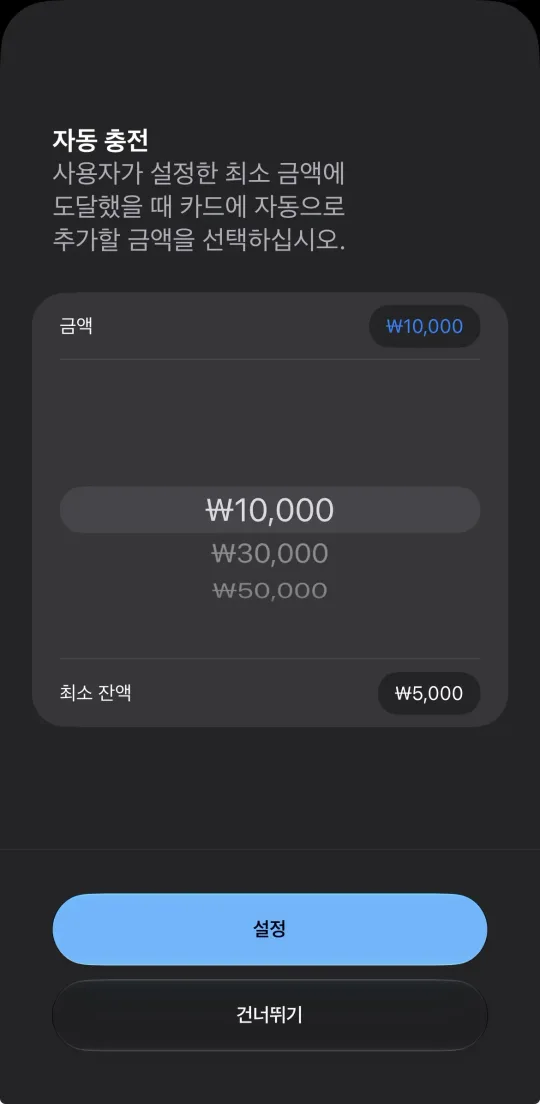
Set up Auto Top-Up
On the 자동 충전 (Auto Top-Up) screen, choose the 금액 (Amount) and 최소 잔액 (Minimum Balance), then tap 설정 (Set Up).
💡 If you don’t want Auto Top-Up, tap 건너뛰기 (Skip). You can also turn it on later in the Wallet app.
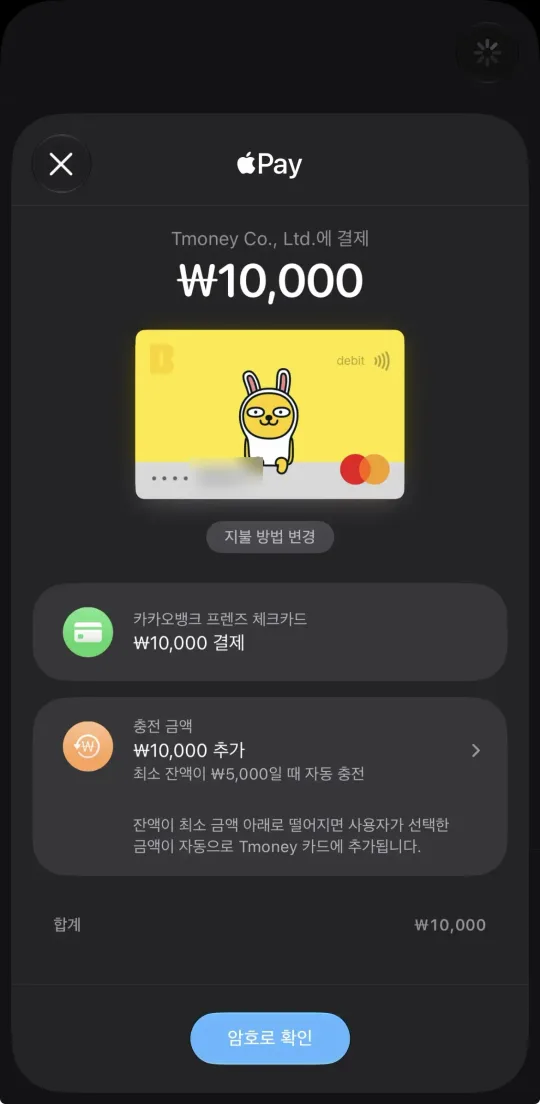
Approve the Auto Top-Up card
In the Apple Pay sheet, check the KakaoBank card to use for Auto Top-Up and approve it.
💡 When your balance falls below the minimum balance, the amount you chose is added automatically from this card.
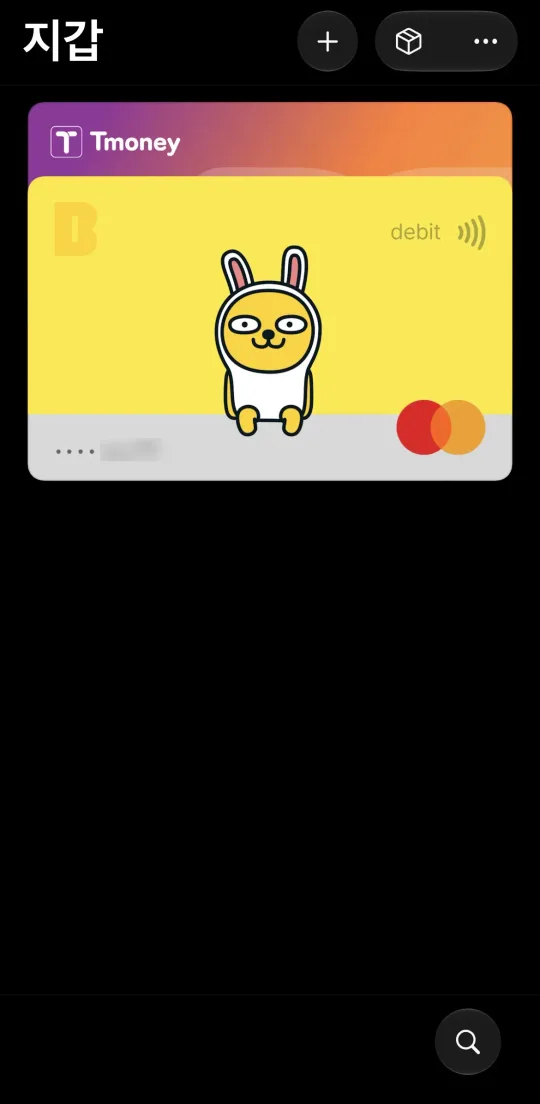
Find T-money in Wallet
When the Tmoney card appears in the Wallet app, you’re done.
Check Express Mode
Go to Settings → Wallet & Apple Pay → Express Transit Card and check that T-money is selected. It’s usually turned on automatically when you add your first T-money.
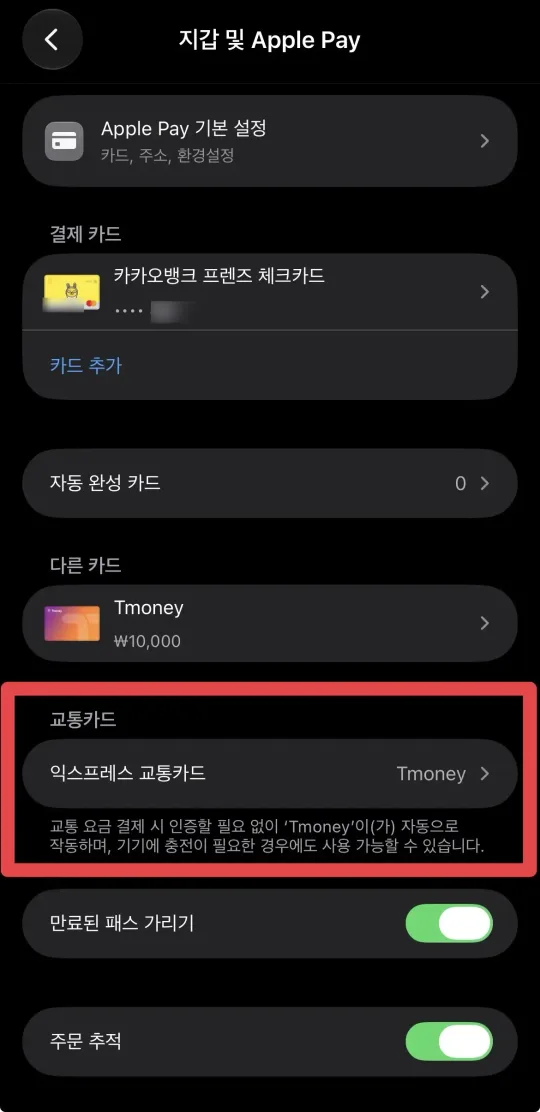
💡 T-money in Wallet works on iPhone XS, XR, or later with iOS 17.2 or later.
📱 No card? Create it with the Mobile T-money app
Even without a card in Apple Pay, you can create T-money with the Mobile T-money (모바일티머니) app. No first top-up is needed.
- Install the Mobile T-money app from the App Store.
- Issue a T-money card in the app. It’s added to Wallet automatically.
- Top it up with a bank account, Kakao Pay, Naver Pay, or T-mileage, and you’re done.
💡 Kakao Pay’s mobile transit card doesn’t work on iPhone, but you can top up T-money with Kakao Pay in the Mobile T-money app. To pay with Kakao Pay, see How to Pay with Kakao Pay on iPhone.
💳 Top up
| Where | How |
|---|---|
| Wallet app | Tap Top Up (충전) on your T-money and pay with a card in Apple Pay (KakaoBank or Hyundai Card) |
| Wallet auto top-up | Turn on Auto Top-Up to add a set amount when the balance falls below the level you choose |
| Mobile T-money app | Top up with a bank transfer, Kakao Pay, Naver Pay, T-mileage, or a card |
💡 While auto top-up is on, you can’t top up manually. Turn auto top-up off, top up, then turn it back on.
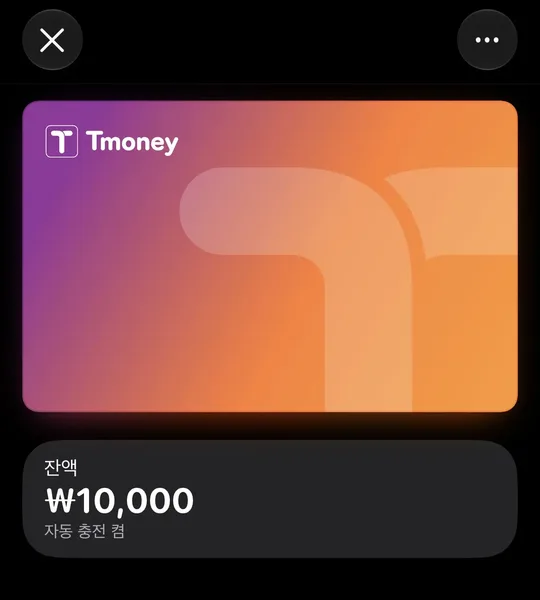
Tap your T-money in the Wallet app to see the balance and whether auto top-up is on.
🚌 Ride buses and subways
⚡ Express Mode
With Express Mode on, just hold your iPhone near the reader. You don’t need to wake the screen or use Face ID.
🔋 When your battery runs out
Even after the red power reserve icon appears, you can keep riding for up to 5 hours (iPhone XS, XR, or later).
🗺️ Where it works
- T-money in Wallet works on any Korean transport that accepts T-money, except some intercity buses and taxis in some regions.
- T-money works only in Korea.
🎁 Install the Mobile T-money app too
The transit card works with the Wallet app alone, but you need the Mobile T-money app for the following, even for T-money created in Wallet:
- Child or youth discount registration: do this to ride at youth fares
- Income deduction registration and T-mileage points
- Balance refunds, sending balance as a gift, and loss or theft protection
💰 Get K-Pass refunds
T-money in Wallet can get K-Pass refunds with Mobile T-money K-Pass (since October 2025).
- Register for K-Pass in the Mobile T-money app.
- Register the issued card number on the K-Pass website or app.
⚠️ Rides taken before you register for K-Pass are not refunded. Postpaid transit K-Pass functions on cards can’t be used with Apple Pay.
⌚ Ride with Apple Watch
📲 Add it to Apple Watch
Add T-money in the Watch app on your iPhone: Wallet & Apple Pay → Add Card.
☝️ One T-money card, one device
If you move T-money from your iPhone to your Apple Watch, it disappears from your iPhone. One T-money card works on only one device.
To use both, add a different T-money to each device. You can’t move balances between cards.
✅ Supported models
Works on Apple Watch Series 6, SE (2nd generation), or later with watchOS 10.2 or later.
💸 Refund the remaining balance
The Wallet app has no refund option. Refunds go only to a bank account in your name through the Mobile T-money app.
- In the Mobile T-money app, open the full menu and tap the transit card refund request (교통카드 환불신청).
- Enter a bank account in your name and submit. The money is sent to that account.
❓ Frequently asked questions
If I add my KakaoBank card to Apple Pay, can I ride buses with my iPhone?
Not with the card itself. Create a separate T-money in Wallet and top it up with that KakaoBank card, then you can ride with your iPhone.
Can I move the T-money balance on my physical mini Card to my iPhone?
Adding the mini Card to Apple Pay doesn’t move the balance. Ask the T-money customer center (1644-0088) or check the T-money app or website about moving or refunding the balance.
Can I add a postpaid transit card to Apple Pay?
No. Only prepaid T-money can be added to Apple Wallet as a transit card.
I'm a teenager but I'm charged the adult fare.
Register for the child or youth discount in the Mobile T-money app. T-money created in the Wallet app is registered in the app too.
Do I need a Hyundai Card or KakaoBank card?
No. If you issue T-money in the Mobile T-money app, you can top it up with a bank account, Kakao Pay, Naver Pay, and more. You need a card in Apple Pay only to top up in the Wallet app.
🔗 Sources (in Korean): Apple transit card guide, T-money blog on Apple Pay T-money, T-money K-Pass press release (October 2025), KakaoBank Apple Pay guide, KakaoBank mini Card guide · Checked November 23, 2026