
How to Add a KakaoBank Card to Apple Pay
How to add your KakaoBank check card or mini card to Apple Pay, with step-by-step screens in the KakaoBank app. Also covers paying in stores, riding buses and subways with T-money, K-Pass, and what to check if it doesn't work.
Table of Contents
💡 Since November 2026, you can add KakaoBank check cards and mini cards to Apple Pay. Just hold your iPhone or Apple Watch near the card reader to pay.
⚠️ Jupjup and Chakbut credit cards are not supported. They are Shinhan Card credit cards offered with KakaoBank, and they don’t support Apple Pay.
ℹ️ The screenshots are from the Korean KakaoBank app. Button names are written as they appear in Korean, with their meaning in parentheses.
💳 Cards you can add
| Card | Apple Pay |
|---|---|
| The Check Card (The 체크카드) | ✅ Yes |
| Friends Check Card (프렌즈 체크카드) | ✅ Yes |
| Group Check Card (모임 체크카드) | ✅ Yes |
| Sole Proprietor Check Card (개인사업자 체크카드) | ✅ Yes |
| mini Card (mini카드) | ✅ Yes (age 14 and over) |
| Jupjup credit card · Chakbut Shinhan Card | ❌ No |
✅ Before you start
- The card must be in your own name.
- You must be 14 or older to add and use it. This is the minimum age for creating an Apple Account.
- Your iPhone must have a passcode or Face ID set up.
- Check whether your iPhone or Apple Watch supports Apple Pay on Apple’s list of compatible devices.
🏦 Which cards and banks support Apple Pay in Korea?
As of November 22, 2026, the Korean card issuers and banks you can choose in the Wallet app are Hyundai Card and KakaoBank.
| Issuer or bank | Apple Pay |
|---|---|
| Hyundai Card | ✅ Yes |
| KakaoBank | ✅ Yes (check cards and mini Card, since November 2026) |
| Other Korean card issuers and banks | ❌ Not yet |
💡 Apple’s list of participating issuers (in Korean, published November 20, 2026) still shows only Hyundai Card for Korea. KakaoBank support was confirmed from KakaoBank’s official guide and the bank list in the Wallet app.
📲 Add a card in the KakaoBank app
Open My Card from All
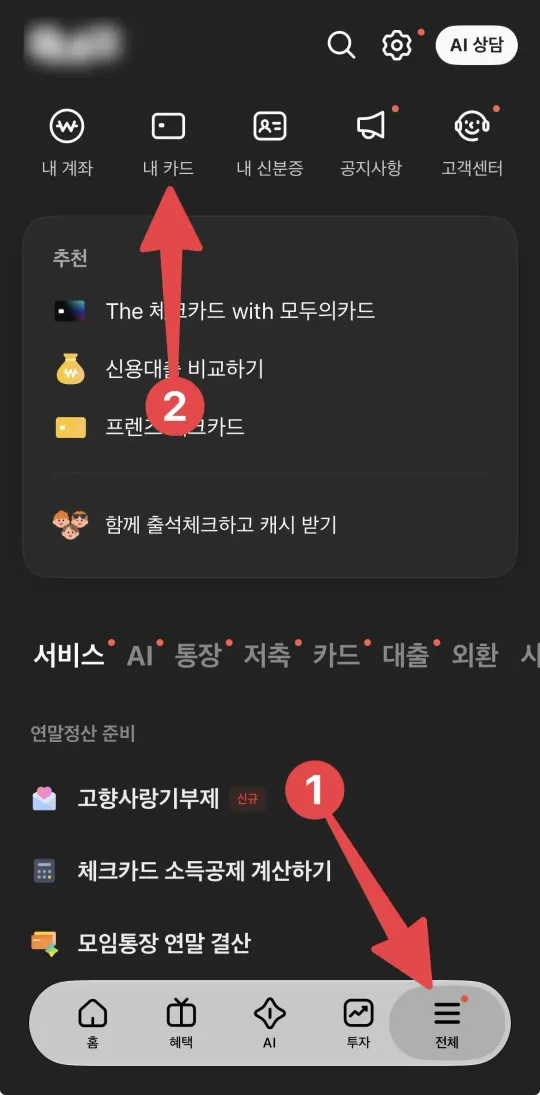
In the KakaoBank app, tap ① 전체 (All) at the bottom, then ② 내 카드 (My Card) at the top.
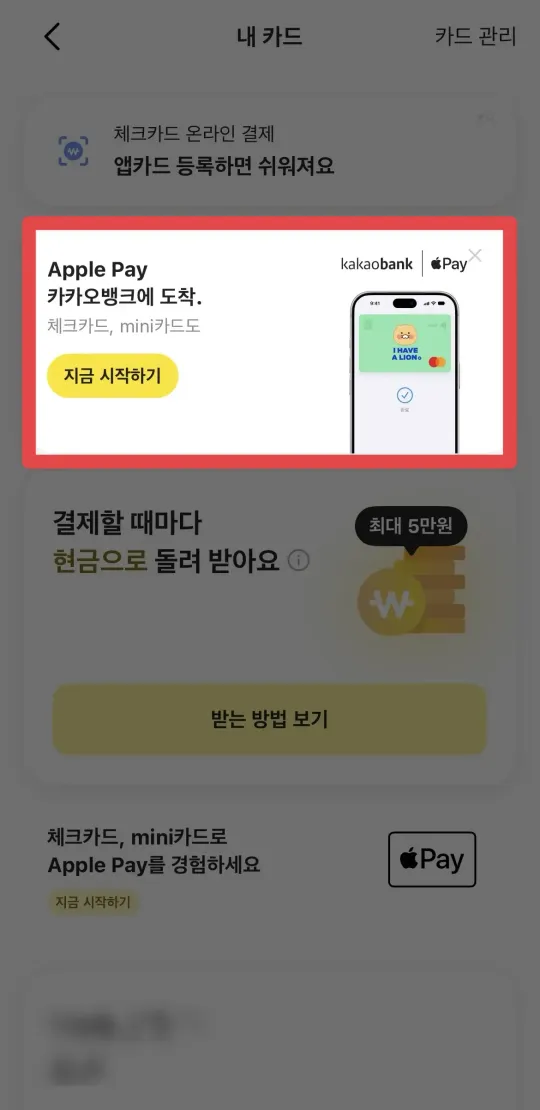
Tap Start now
On the My Card screen, find the Apple Pay 카카오뱅크에 도착 (Apple Pay has arrived at KakaoBank) banner and tap 지금 시작하기 (Start now).
💡 If you don’t see the banner at the top, scroll down and tap 지금 시작하기 (Start now) under 체크카드, mini카드로 Apple Pay를 경험하세요 (Experience Apple Pay with your check card or mini Card). The top banner has an × button, so it may be gone if you closed it before.
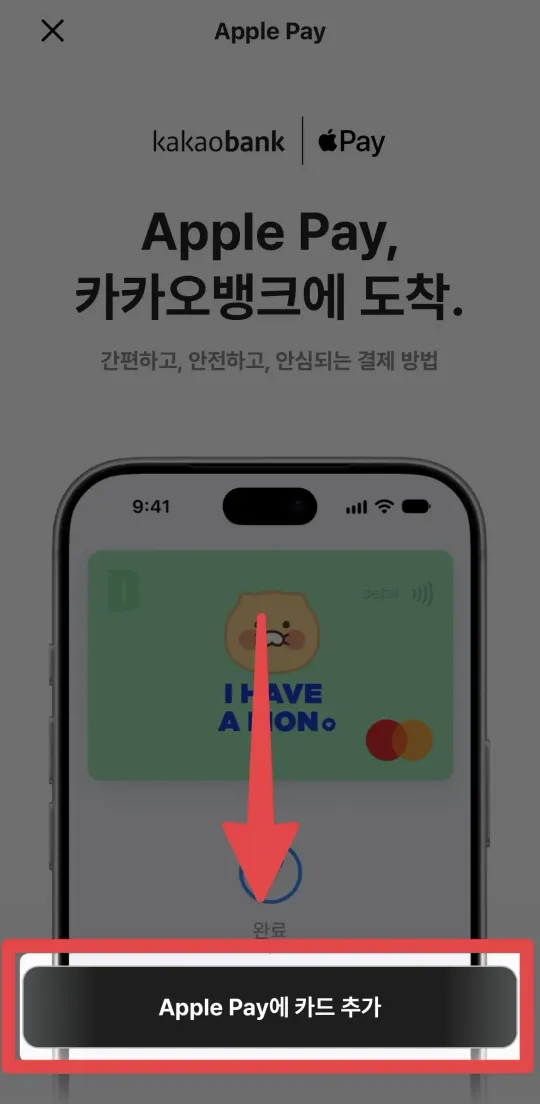
Tap Add Card to Apple Pay
At the bottom of the intro screen, tap Apple Pay에 카드 추가 (Add Card to Apple Pay).
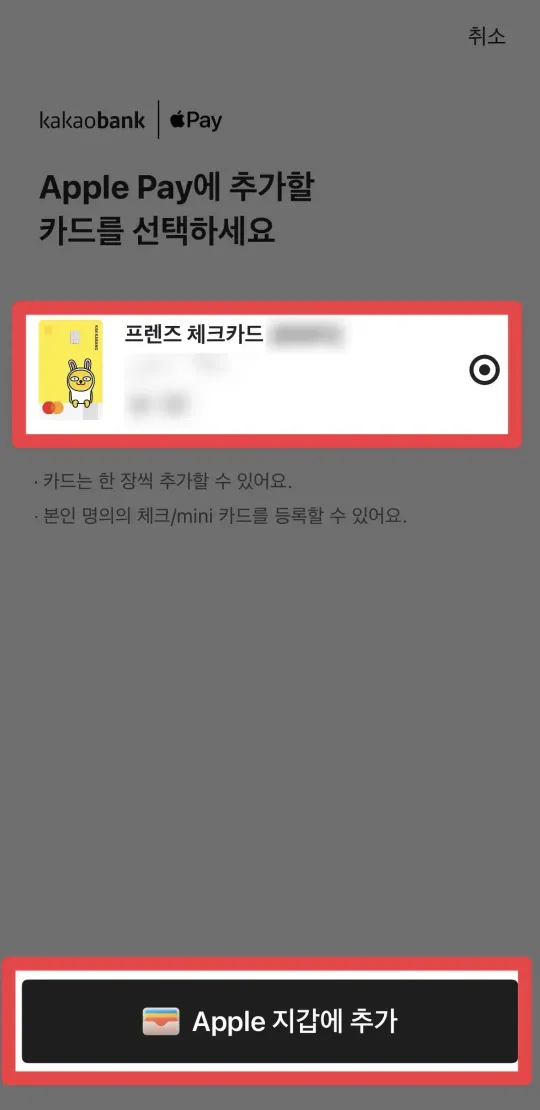
Choose a card and add it to Apple Wallet
Choose the card you want to add and tap Apple 지갑에 추가 (Add to Apple Wallet).
💡 You can add one card at a time. To add more cards, repeat these steps.
Tap Agree and Continue
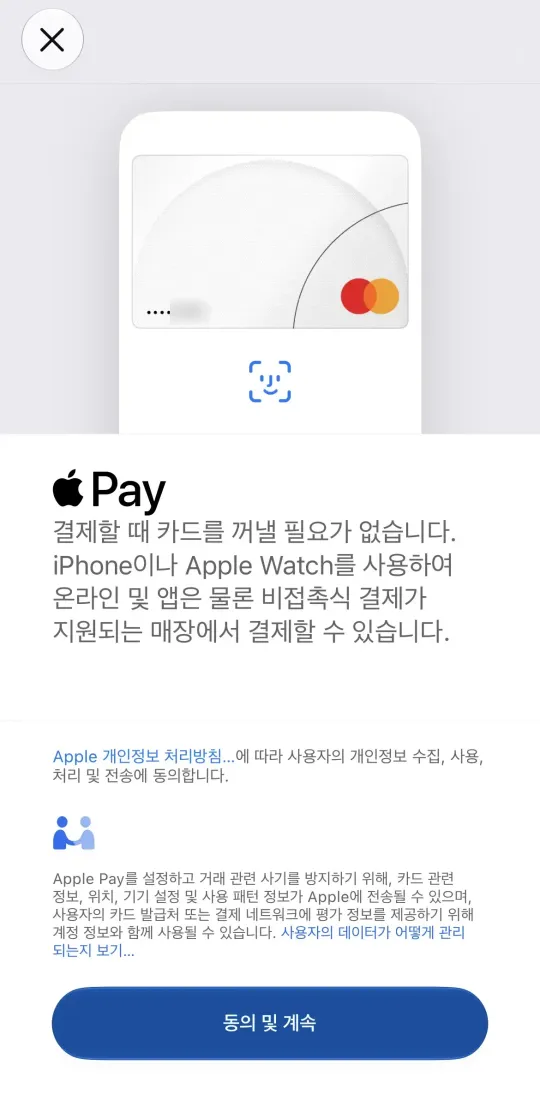
When the Apple Pay screen appears, tap 동의 및 계속 (Agree and Continue). On the card details screen, tap 계속 (Continue).
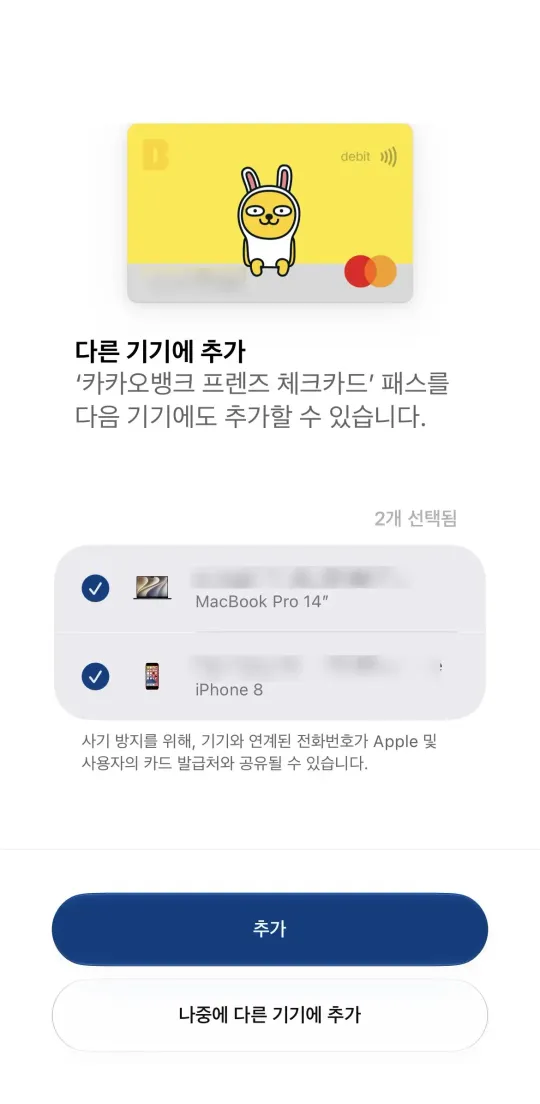
Add it to your other devices
If your other Apple devices, such as a Mac or another iPhone, are listed, tap 추가 (Add) to add the card to them too. To do it later, tap 나중에 다른 기기에 추가 (Add to other devices later).
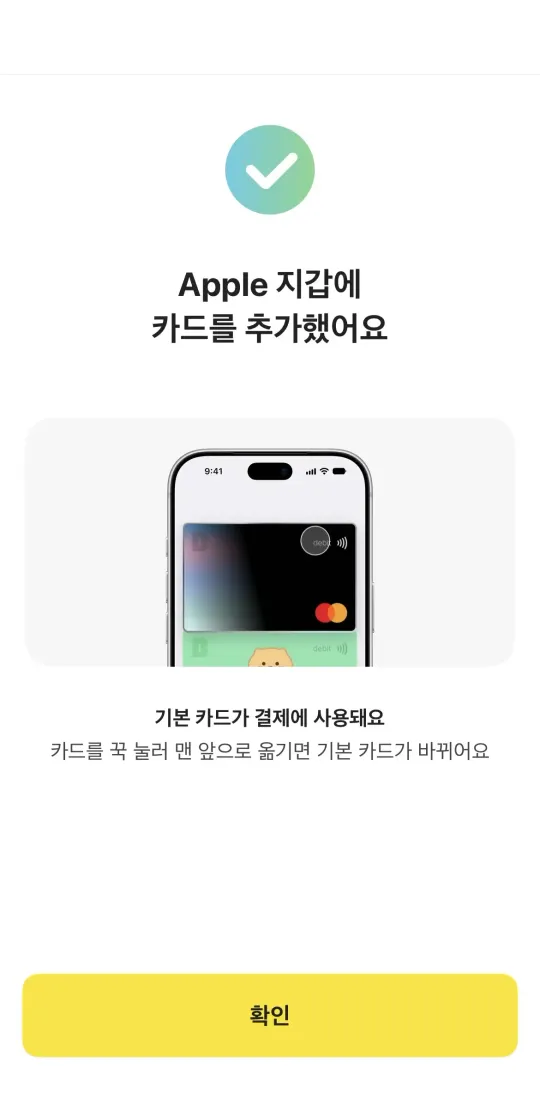
Tap OK to finish
On the screen that explains how to pay, tap 계속 (Continue). When you see Apple 지갑에 카드를 추가했어요 (Card added to Apple Wallet), tap 확인 (OK). You’re done!
💡 If you have several cards in Wallet, the card at the front (default card) is used to pay. Touch and hold a card and move it to the front to change the default card.
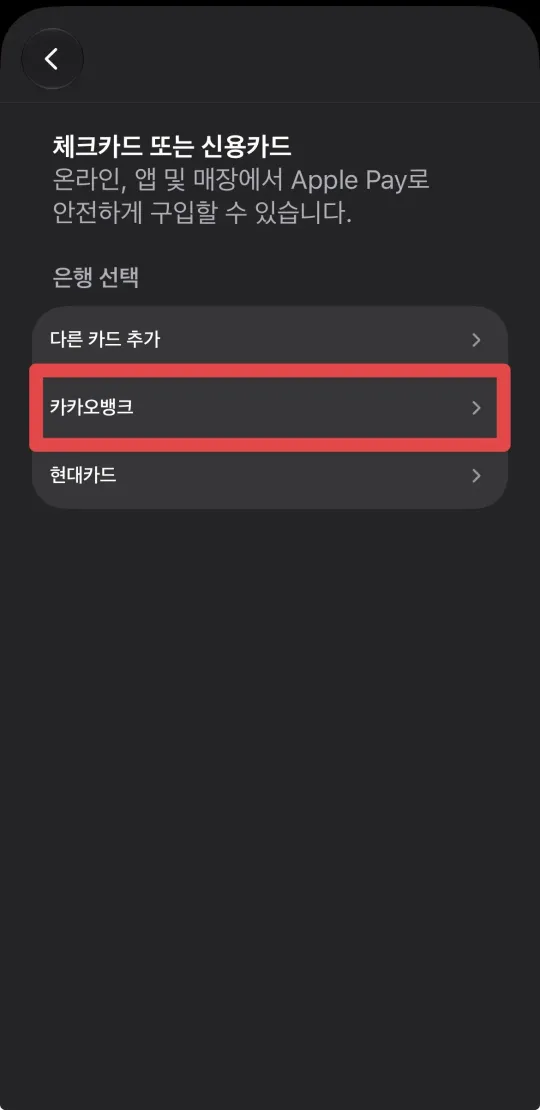
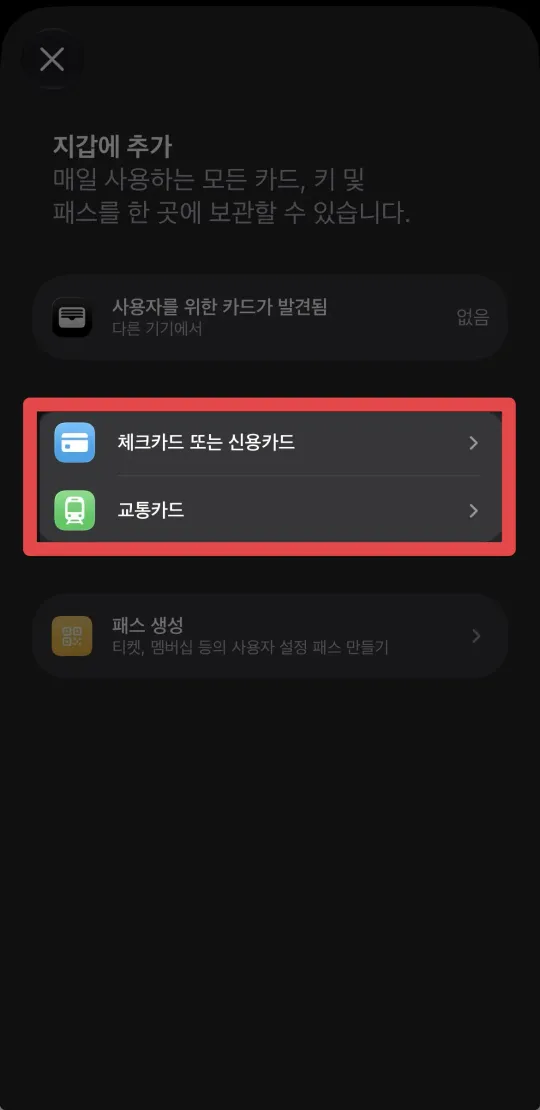
💡 You can also start from the Wallet app. In Wallet, tap + at the top right → Debit or Credit Card (체크카드 또는 신용카드) → KakaoBank (카카오뱅크) in the bank list → Open KakaoBank (카카오뱅크 열기). The KakaoBank app opens, and you add the card the same way as above.
🛒 Pay with Apple Pay
🏪 In stores
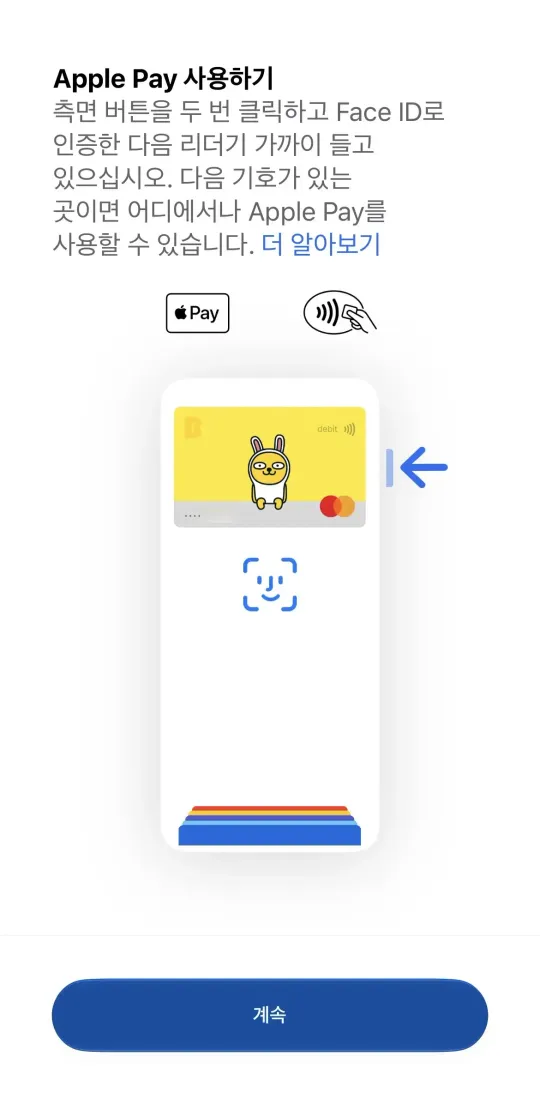
- Double-click the side button on your iPhone.
- Confirm with Face ID (or Touch ID).
- Hold your iPhone near the card reader. That’s it.
You can pay at any store, in Korea or abroad, that shows the contactless symbol.
🛍️ Online and in apps
Where Apple Pay is accepted, choose Apple Pay and pay without typing your card number.
✈️ Abroad
You can use it just as you do in Korea, with no extra settings. However, domestic-only cards can’t be used to pay abroad.
🚌 Buses and subways: use a transit card
⚠️ You can’t tap your KakaoBank card itself on bus or subway readers. Apple Wallet doesn’t support the postpaid transit function built into cards.
Instead, add a separate prepaid T-money transit card to Wallet and top it up with your KakaoBank card. See How to Add and Top Up T-money in Apple Pay for the Mobile T-money app, youth fares, and refunds.
Add T-money to Wallet
In the Wallet app, tap +, choose Transit Card (교통카드), and follow the instructions to add T-money.
💡 When you add it in the Wallet app, you need to make a first top-up of at least ₩3,000.
Top up with your KakaoBank card
On the T-money card in Wallet, tap 충전 (Top Up) and pay with the KakaoBank card you added to Apple Pay. Turn on Auto Top-Up to refill the card automatically when the balance falls below the amount you set.
📱 Supported devices
T-money in Wallet works on iPhone XS, XR, or later with iOS 17.2 or later, and on Apple Watch Series 6, SE (2nd generation), or later with watchOS 10.2 or later.
⚡ Express Mode
If you set T-money to Express Mode, just hold your device near the reader. No Face ID needed.
💰 Can I get K-Pass refunds?
Yes, with Mobile T-money K-Pass. Since October 2025, T-money has applied K-Pass to T-money in Apple Wallet (Apple Pay T-money).
- Install the Mobile T-money (모바일티머니) app and register for K-Pass in the app.
- Register the card number you receive on the K-Pass website or app.
⚠️ Rides taken before you register for K-Pass are not refunded. The postpaid transit function on cards can’t be used with Apple Pay, so register Mobile T-money K-Pass separately to get refunds when you ride with your iPhone.
⌚ Use it on Apple Watch
Add your KakaoBank card to your Apple Watch too, and you can pay from your wrist without your iPhone. Your Apple Watch must have a passcode set.
💳 Add a card to Apple Watch
If you see an option to add the card to your Apple Watch while adding it, add it there. To add it later:
- On your iPhone, open the Watch app and go to the My Watch tab.
- Tap Wallet & Apple Pay → Add Card.
- Choose Debit or Credit Card and follow the instructions. Cards already on your iPhone may also be listed for you to choose.
Menu names may differ slightly depending on your iPhone’s language.
🛒 Pay with Apple Watch
- Double-click the side button on your Apple Watch. Your default card opens. Scroll down to choose another card.
- Hold the display near the reader until you feel a gentle tap and hear a beep.
🚌 Ride buses and subways with Apple Watch
- You can add T-money to your Apple Watch too. In the Watch app on your iPhone, go to Wallet & Apple Pay → Add Card, choose the transit card, and follow the instructions.
- It works on Apple Watch Series 6, SE (2nd generation), or later with watchOS 10.2 or later.
- One T-money card works on only one device. To use T-money on both your iPhone and Apple Watch, add a different card to each. You can’t move balances between cards.
❓ If you can’t add your card
| What to check | What to do |
|---|---|
| I don’t see Start now (지금 시작하기) in the KakaoBank app | Scroll down the My Card screen and tap the other 지금 시작하기 (Start now), or start from the Wallet app (+ → Debit or Credit Card → KakaoBank → Open KakaoBank). Also try updating the KakaoBank app |
| Is it a Jupjup or Chakbut credit card? | These don’t support Apple Pay. Use a check card or mini Card instead |
| Are you under 14? | You can add a card from age 14 |
| Is a passcode or Face ID set on your iPhone? | Set one up in the Settings app first |
| Is the card in your own name? | You can’t add a card in someone else’s name |
| Does your device support Apple Pay? | Check Apple’s list of compatible devices |
| KakaoBank isn’t in the Wallet bank list | Update the KakaoBank app and iOS, then try again |
📞 Still not working? Contact the KakaoBank customer center at 1599-3333 (from abroad: +82-2-6420-3333).
🙋 Frequently asked questions
Is there anything to watch out for the first time?
- Only check cards and mini Cards work, not Jupjup or Chakbut credit cards.
- The card must be in your own name, and you must be 14 or older.
- You add one card at a time.
- With several cards, the default card at the front is used, so put the card you use most at the front.
- You can’t tap the card itself on buses and subways; top up T-money in Wallet instead.
- Domestic-only cards can’t be used to pay abroad.
Is there a fee for using Apple Pay?
No. Apple doesn’t charge any fees when you pay with Apple Pay in stores, online, or in apps (Apple’s official guide). KakaoBank’s official guide also lists no separate charge for customers. Fees for payments abroad follow your card’s terms, so check with KakaoBank.
Can I pay with my Apple Watch?
Yes. Add your KakaoBank card to Wallet on your Apple Watch too, then double-click the side button to pay. See “Use it on Apple Watch” above.
Can I add several cards at once?
No. In the KakaoBank app, you add one card at a time. To choose which card pays, touch and hold a card in Wallet and move it to the front.
What if I lose my iPhone?
Turn on Lost Mode in Find My to suspend or remove the cards in Apple Pay.
Is my card number shared with the store?
No. Apple Pay uses an encrypted code instead of your card number when you pay.
Can I ride the bus with a mini Card?
Yes. Add your mini Card to Apple Pay, then top up the T-money in Wallet with your mini Card to ride buses and subways.
Can foreigners use it?
Yes. Foreigners aged 19 or older who have an alien registration number (or a residence report number) and meet the visa requirements can get a Friends Check Card and add it to Apple Pay. Foreigners can only get domestic-only cards, so the card can’t be used to pay abroad.
🔗 Sources (in Korean): KakaoBank Apple Pay guide, Apple Pay, Apple’s participating issuers, Set up Apple Pay, Pay with Apple Pay, Apple transit card guide, T-money K-Pass press release (October 2025), T-money blog on Apple Pay T-money · Checked November 22, 2026